
Use the following directions to update either the primary email address or secondary email addresses associated to your CM/ECF account. In order to add new secondary email addresses, you must commit the change in your CM/ECF account. Updating your PACER account will not update our court specific CM/ECF e-file account.
- Login to the CM/ECF system.
- Select 'Utilities' from the main menu bar:

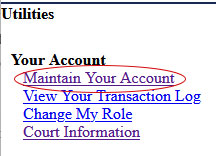
- From the 'Utilities' menu, select the 'Maintain Your Account' option. You may have more options than appears in the example image.
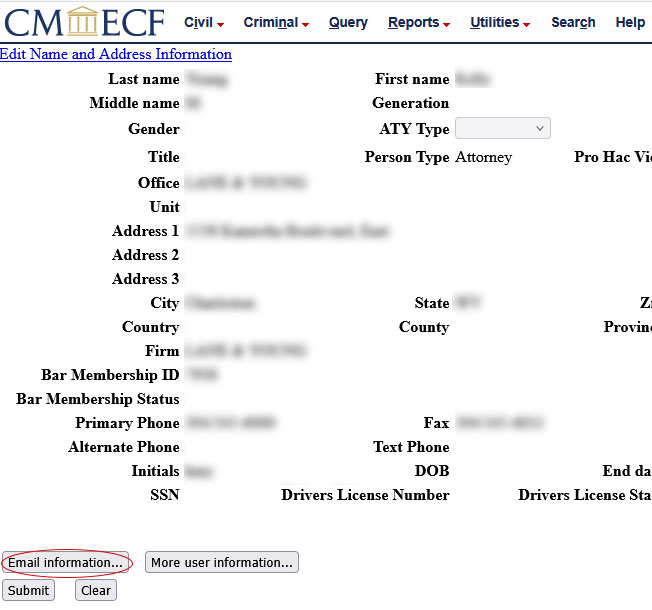
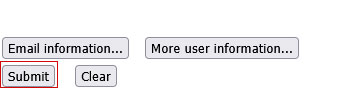
- Once the 'Maintain Your Account' page has loaded, select the 'Email Information' button at the bottom of the page.
- On the 'Email Information' screen, the Primary email address is that of the attorney. To change the attorney's email address in the vent of a change, click on the primary email address. The address will appear in the Configuration options field. Delete or edit the information, as necessary, in this box.
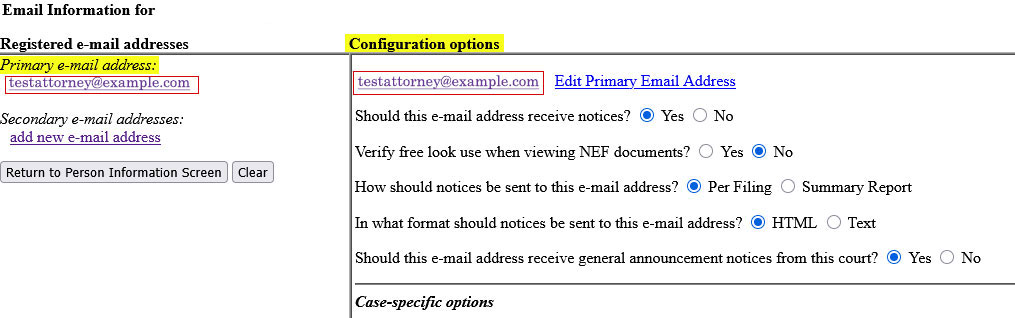
- To add additional or edit existing secondary addresses, such as support staff, to receive the same notices of electronic filing and the same free look at the documents, click the 'add new e-mail addresses' or on the existing secondary address link under the 'Secondary e-mail addresses'.
Insert the secondary email address in the 'Configuration options' field. You may continue adding until you reach a total of 5 additional/secondary addresses by clicking the 'add new e-mail address' link. To edit any of the additional addresses already in the system, click on the secondary email address. The address will appear in the 'Configuration options' field. Delete or edit the information in this box as necessary.

- Once all changes or additional have been made to the email address(s), click on the 'Return to Person Information Screen' button.
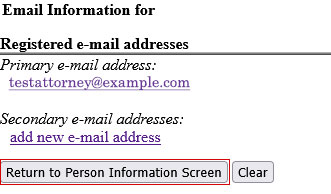
- On the 'Maintain User Account' screen, go to the bottom and click 'Submit'. After hitting the button, a new screen will ask if you want to commit the update. Click the 'Submit' button again.
- Note: The changes to email addresses are not recorded until the next screen appears indicating the update was successful.